The Windows 10 update notifier behaves according to the phase and how close to the Windows 10 launch is. Digging through the config.xml file reveals the phases that Windows 10 launch could be in, such as None, AnticipationUX, Reservation, Reserved, RTM, GA, UpgradeDetected, UpgradeDownloadInProgress, UpgradeDownloaded, UpgradeReadyToInstall, UpgradeReadySetupInProgress, UpgradeSetupCompatBlock, UpgradeSetupRolledBack, UpgradeSetupFailed, UpgradeSetupComplete and etc.
It’s possible to disable and remove the “Get Windows 10” icon and notification window, by uninstalling KB3035583 update, which was delivered as recommended update to Windows 8.1 Pro, Windows 8.1, and Windows 7 Ultimate, Windows 7 Professional, Windows 7 Home Premium, Windows 7 Home Basic and Windows 7 Starter installed with Service Pack 1 (SP1) early April 2015.
- Open Windows Update by going to Control Panel -> System and Security -> Windows Update, or search for it.
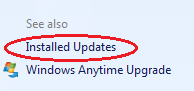
- Click on Installed Updates on the bottom left corner.
- Locate and select the Update for Microsoft Windows (KB3035583) update under Microsoft Windows section. You can search for KB3035583in the search box on top left corner.
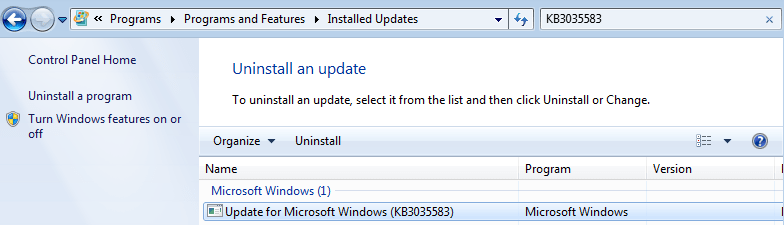
NoteUninstall Update for Microsoft Windows (KB2976978) also if the Get Windows 10 app is not removed completely. - Click on Uninstall to remove the update.
- Click Yes to confirm.
- When uninstallation process is completed, restart the computer.
Alternative
An alternative to the above steps, open a Command Prompt as Administrator, and run the following commmand:
WUSA /Uninstall /KB:3035583Or, download a third party utility called “I Don’t Want Windows 10” from GitHub
[HKEY_LOCAL_MACHINE\SOFTWARE\Policies\Microsoft\Windows\Gwx]
"DisableGwx"=dword:00000001
In addition to the registry key above, you can also rename the GWXUXWorker.exe and GWX.exe files that are responsible for the nag message (as if they’re deleted). To do so, end and terminate the GWX.exe process using Task Manager. Then, rename the GWXUXWorker.exe and GWX.exe which are located at C:\Windows\System32\GWX folder to another name, such as by appending an suffix likes backup or old. If you prefer, you can delete and remove the entire GWX folder too. Note that you may need to give the system permission’s to respective files if you’re facing with access denied issue.
Note
Officially, Microsoft is recommending the following method to turn off notification from “Get Windows 10” app:
Click “Customize” in the System Tray and turn off the Get Windows 10 app notifications in the menu that comes up.

Không có nhận xét nào:
Đăng nhận xét